
Quick Start
This article uses OPC UA Simulation Server (Prosys) as the data source to take you through the entire process from Installing NG Gateway to Creating Southward OPC UA Channel/Device/Point, and finally seeing real-time data in "Monitor".
0. Prerequisites
- Docker Engine
- A host capable of running NG Gateway (Linux/macOS/Windows are all fine)
- A host with OPC UA Simulation Server installed and running (can be the same machine as NG Gateway)
1. Install and Start NG Gateway
This chapter only uses Docker for installation, using default configuration out of the box.
NG Gateway adopts an All-in-one architecture:
- One service
gateway: The gateway process provides both API (/api) + Web UI (/)
1.1 Start (docker run)
docker run -d --name ng-gateway \
  --privileged=true \
  --restart unless-stopped \
  -p 8978:5678 \
  -p 8979:5679 \
  -v gateway-data:/app/data \
  -v gateway-drivers:/app/drivers/custom \
  -v gateway-plugins:/app/plugins/custom \
  shiyuecamus/ng-gateway:latest
Key Reminders (Be sure to check/modify):
- Port Mapping: If the host port is occupied, modify the host port on the left side of
-p(e.g.,-p 18978:8978). The subsequent examples in the document default to8978. - Data Persistence: Please keep the
gateway-datavolume, otherwise restarting/upgrading the container will lose theBuilt-in SQLite DatabaseandRuntime Dataunderdata/. - Custom Drivers/Plugins: If you will install custom driver/plugin, please keep the
gateway-drivers/gateway-pluginsvolumes to avoid losing "Driver" / "Plugin" files due to container recreation. - Docker Network Address: When configuring southward device addresses in the gateway later, do not use
127.0.0.1to point to the host service; please prioritize using the Host LAN IP. - UI Access: Web UI and API share the same port (default
8978), UI ishttp://<host>:8978/, API ishttp://<host>:8978/api.
1.2 Verify Container Startup
docker ps
docker logs -f --tail=200 ng-gateway
1.3 Upgrade (Pull new image and recreate container)
docker pull shiyuecamus/ng-gateway:latest
docker rm -f ng-gateway
docker run -d --name ng-gateway \
  --privileged=true \
  --restart unless-stopped \
  -p 8978:5678 \
  -p 8979:5679 \
  -v gateway-data:/app/data \
  -v gateway-drivers:/app/drivers/custom \
  -v gateway-plugins:/app/plugins/custom \
  shiyuecamus/ng-gateway:latest
2. Install Prosys OPC UA Simulation Server
Download and install Prosys OPC UA Simulation Server:
- Download URL:
https://downloads.prosysopc.com/opc-ua-simulation-server-downloads.php
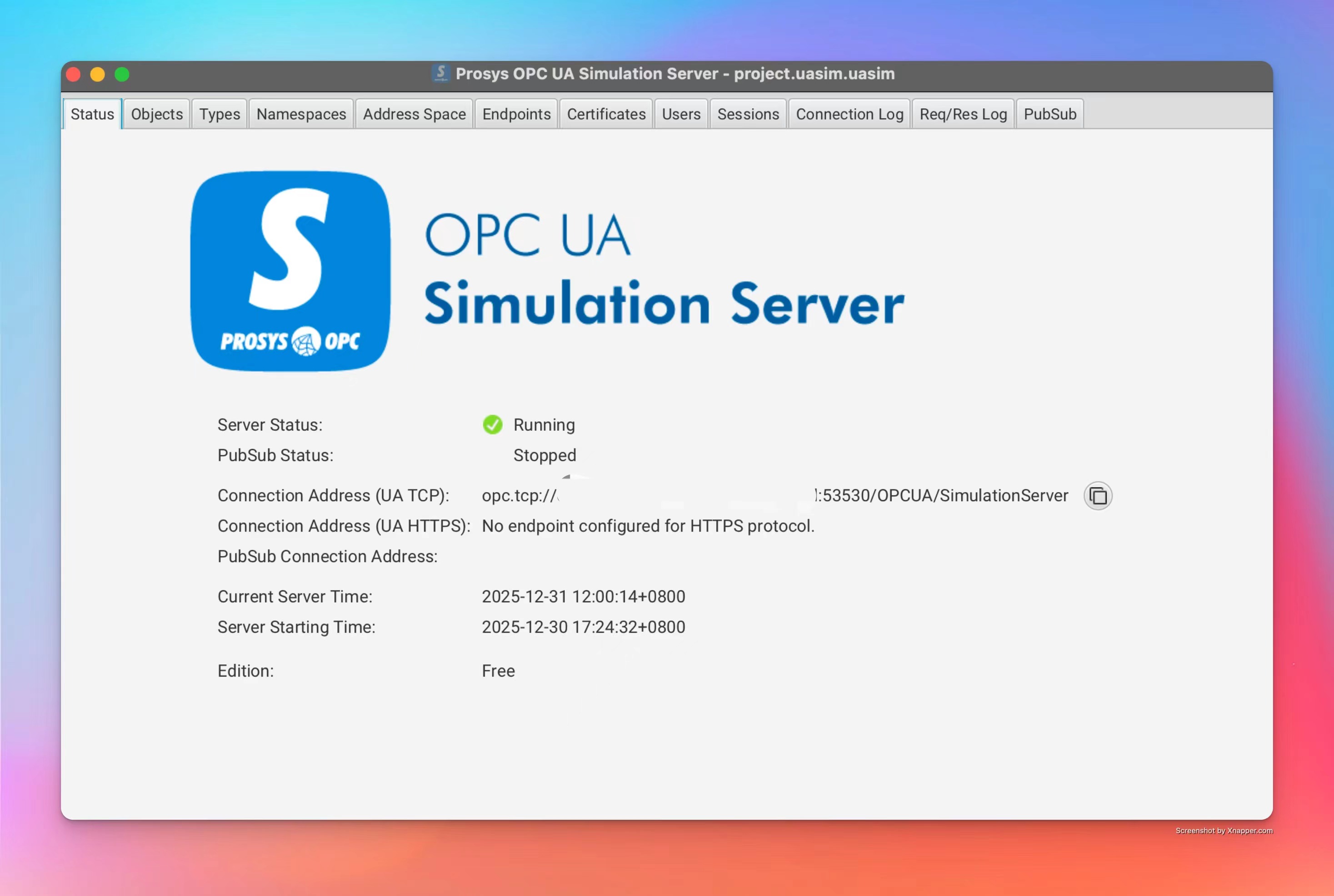
3. Run Simulator and Verify Object
- Start OPC UA Simulation Server.
- Confirm the Server starts normally and you can see automatically created objects/variables in the Object Tree on the left.
Important Tips
- Ensure NG Gateway and the simulator are running in the same LAN.
- For Windows environments, it is recommended to turn off the firewall or open ports, otherwise the gateway may fail to connect to the simulator.
- If NG Gateway is running in a Docker container,
127.0.0.1points to the container itself, not the host; please prioritize using the Host LAN IP.
Prosys OPC UA Simulation Server defaults to EndpointUrl:
opc.tcp://${Local LAN Address}:53530/OPCUA/SimulationServer
4. Open NG Gateway UI
Default UI Address:
http://x.x.x.x:8978/
Where x.x.x.x is the IP of the host running the gateway service (use http://127.0.0.1:8978/ for the same machine).
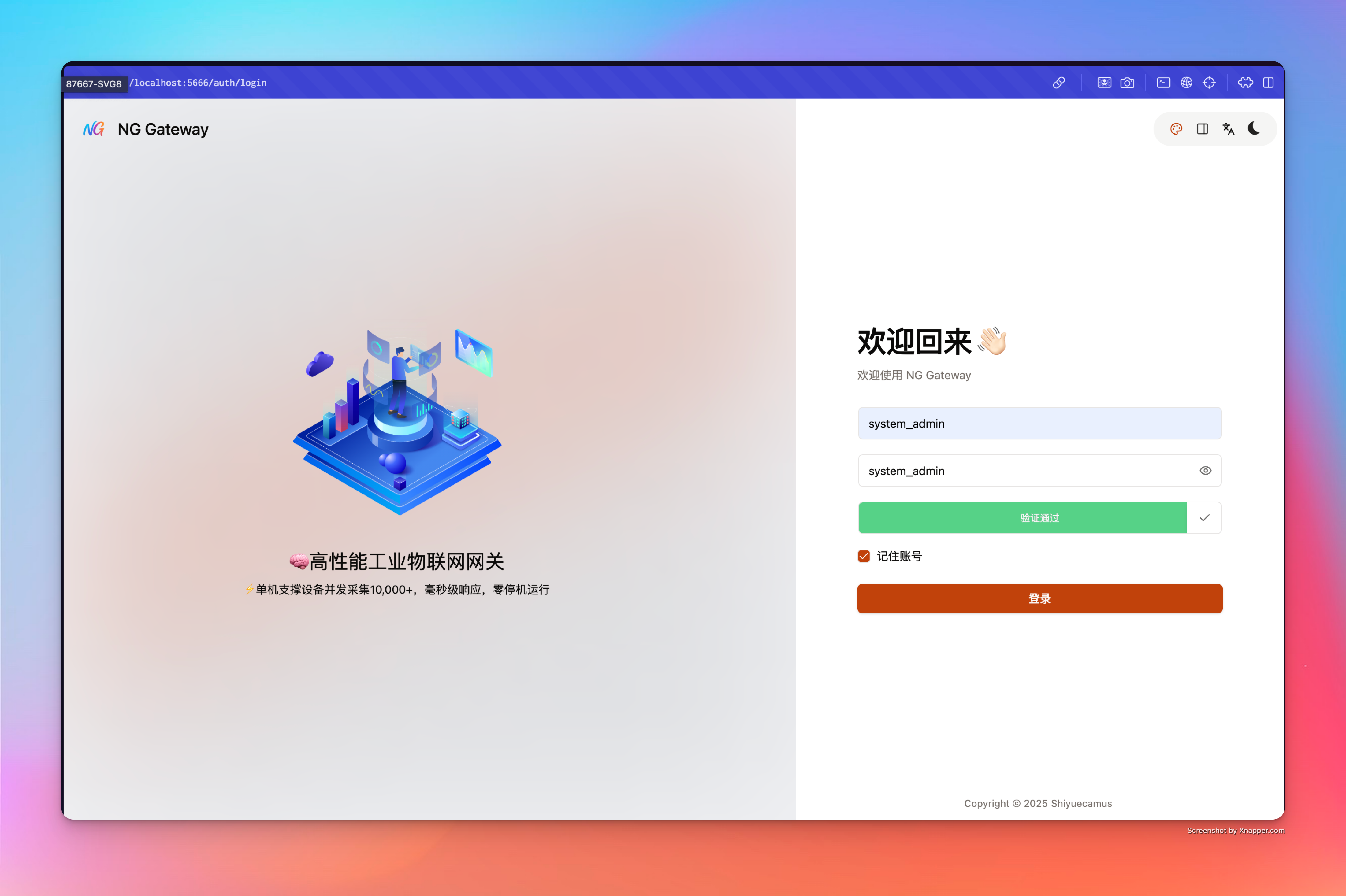
5. Login to Web UI
Default account for first login:
- Username:
system_admin - Password:
system_admin
Tip: It is recommended to change the password immediately after the first login.
6. Add Southward Channel
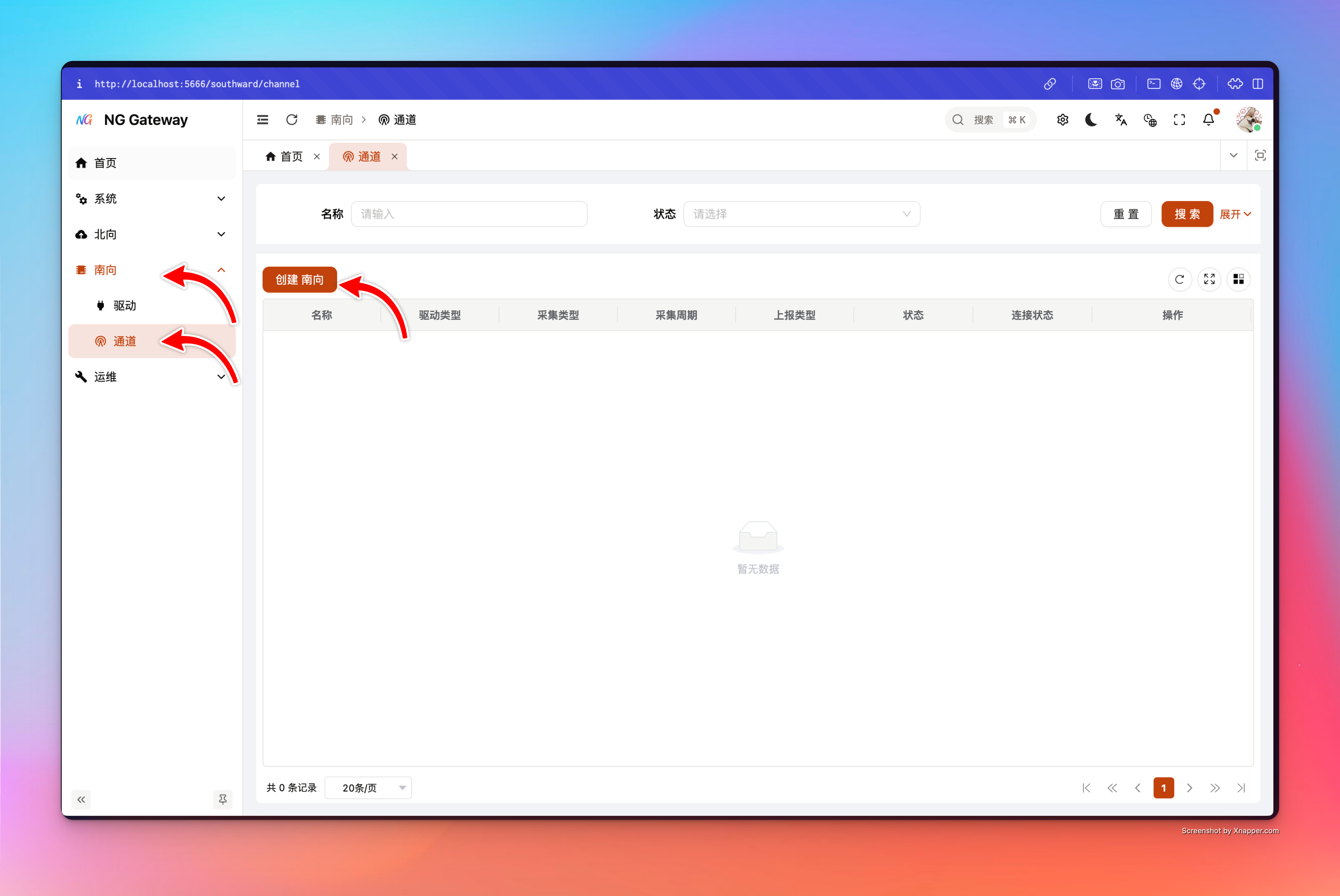
Select "Southward" -> "Channel" in the left menu to enter the southward channel management interface, and click "Add Channel" to create a new channel.
7. Southward Channel Configuration
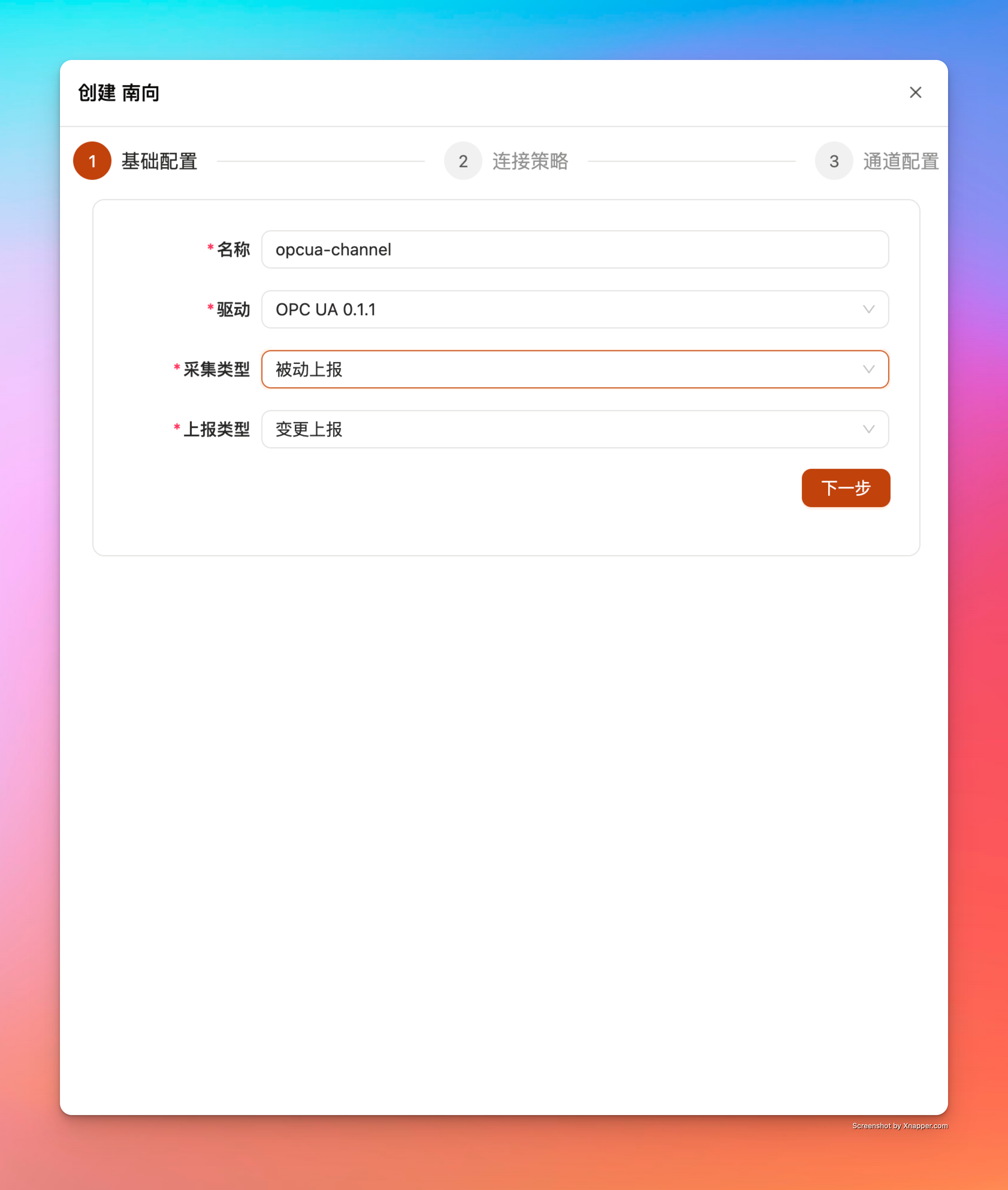
7.1 Basic Configuration
- Name: Channel Name
- Example:
opcua
- Example:
- Driver: Select
OPC UA - Collection Type
- Report: The device/protocol stack actively pushes data to the gateway, and the gateway passively receives it (OPC UA is recommended to work with "Subscribe" mode).
- Collection: The gateway actively initiates read requests to the device periodically to collect data, which requires "Collection Period".
- Collection Period (period, ms): The gateway maps it to the period of background asynchronous collection tasks.
- Constraint: Only effective and required when Collection Type is Collection.
- Report Type (ReportType)
- Change: Only routed to northward applications when the data value changes.
- Always: Continuously routed to northward applications regardless of whether data changes (use with caution for high-frequency points to avoid pressure on northward and storage).
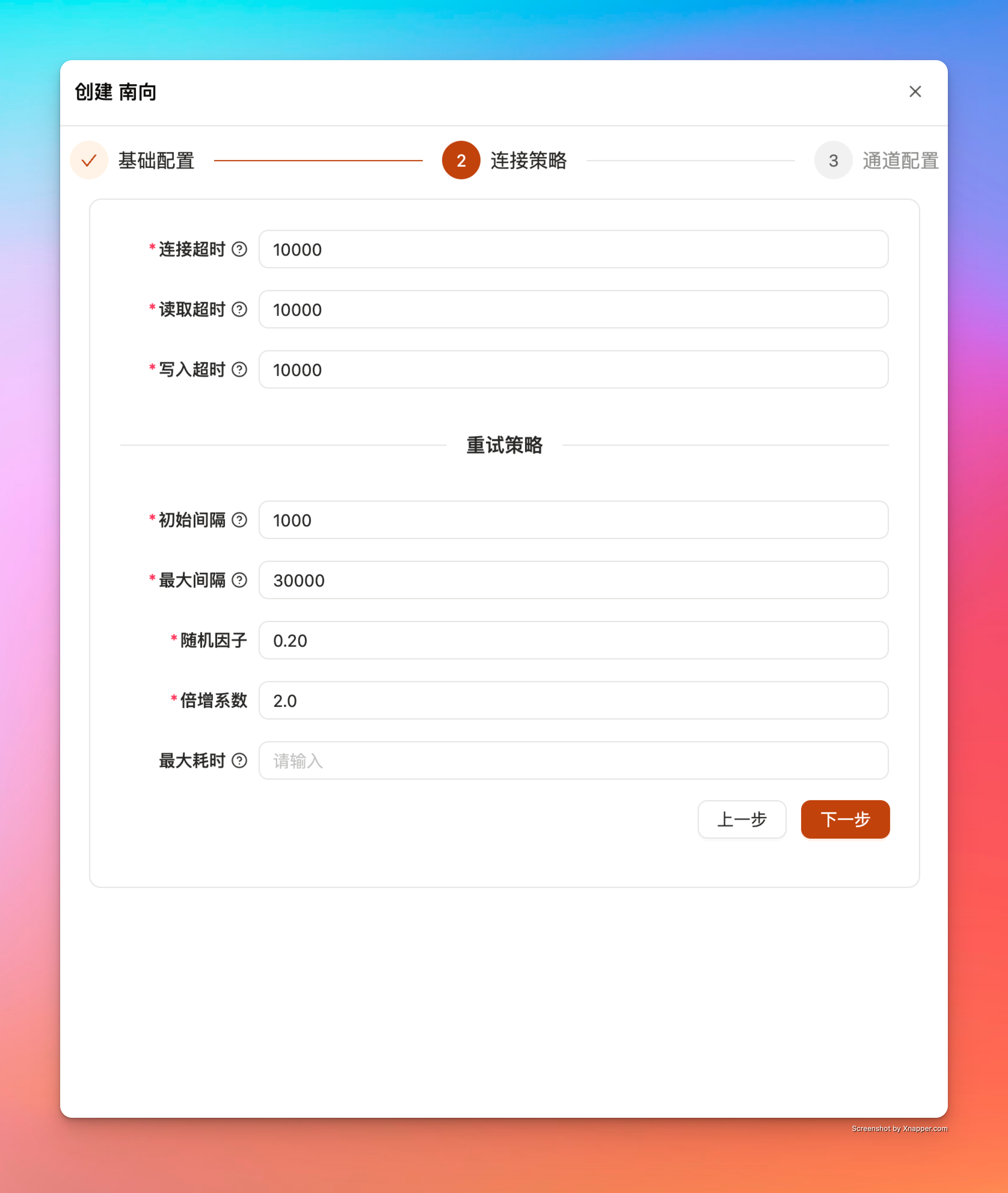
7.2 Connection Strategy Configuration
This configuration controls channel connection establishment/read/write request timeouts and disconnection reconnection backoff strategies.
- Connect Timeout (connectTimeoutMs, ms)
- Semantics: Timeout for establishing a channel connection.
- Default:
10000
- Read Timeout (readTimeoutMs, ms)
- Semantics: Single read request timeout (usually used for single task time control of active collection).
- Default:
10000
- Write Timeout (writeTimeoutMs, ms)
- Semantics: Single write/control request timeout (e.g.,
WritePointorCommand). - Default:
10000
- Semantics: Single write/control request timeout (e.g.,
Retry Strategy
Used for automatic reconnection after channel disconnection/failure.
- Max Attempts (maxAttempts)
- Semantics: Maximum number of retries (
0means no retry; empty means unlimited). - Default:
3
- Semantics: Maximum number of retries (
- Initial Interval (initialIntervalMs, ms)
- Semantics: Wait time before the first retry.
- Default:
1000
- Max Interval (maxIntervalMs, ms)
- Semantics: Upper limit of retry wait time.
- Default:
30000
- Randomization Factor (randomizationFactor)
- Semantics: Range ([0.0, 1.0]), used to introduce jitter to avoid "thundering herd".
- Example:
0.2means introducing ±20% random fluctuation on each backoff interval. - Default:
0.2
- Multiplier (multiplier)
- Semantics: Multiplier for each retry interval, typically exponential backoff
2.0. - Default:
2.0
- Semantics: Multiplier for each retry interval, typically exponential backoff
- Max Elapsed Time (maxElapsedTimeMs, ms)
- Semantics: Optional "total elapsed time limit" (stop retrying after reaching); empty means no limit on total elapsed time.
- Default: Empty (Unlimited)
7.3 Driver Configuration
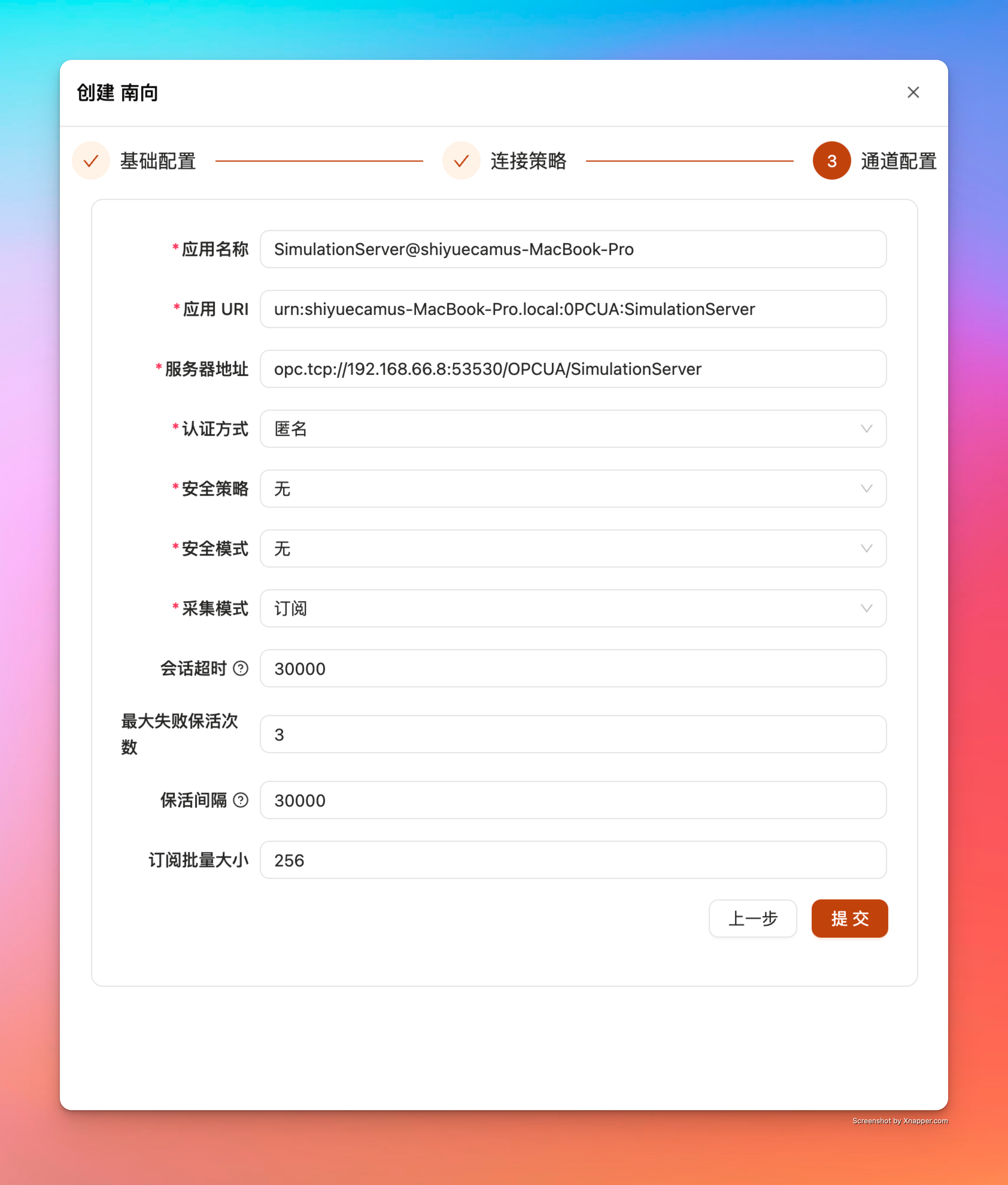
- Application Name (applicationName)
- Semantics: OPC UA Client's ApplicationName.
- Example:
SimulationServer@my-host
- Application URI (applicationUri)
- Semantics: OPC UA Client's ApplicationUri.
- Example:
urn:my-host.local:OPCUA:SimulationServer
- Server Address (url)
- Semantics: OPC UA Server's EndpointUrl.
- Syntax:
opc.tcp://{host}:{port}/{path} - Example (Same machine LAN):
opc.tcp://${Local LAN Address}:53530/OPCUA/SimulationServer
- Authentication (auth)
- Anonymous: Usually usable without configuration after default installation of Simulation Server.
- UsernamePassword: Requires username and password.
- IssuedToken: Requires
token; current implementation decodes as Base64 to byte string. - Certificate: Requires
privateKeyandcertificate(Note: Fill in the Certificate/Private Key PEM text content here, not the file path).
- Security Policy (securityPolicy):
None/Basic128Rsa15/Basic256/Basic256Sha256/Aes128Sha256RsaOaep/Aes256Sha256RsaPss - Security Mode (securityMode):
None/Sign/SignAndEncrypt - Read Mode (readMode)
- Subscribe: Receive changes in real-time via Subscription (works with "Report").
- Read: Send Read requests periodically (works with "Collection + Collection Period").
- Session Timeout (sessionTimeout, ms)
- Semantics: OPC UA Client session timeout.
- Default:
30000
- Max Failed Keep Alive Count (maxFailedKeepAliveCount)
- Semantics: After how many consecutive KeepAlive failures, consider the connection unavailable and trigger reconstruction/reconnection.
- Default:
3
- Keep Alive Interval (keepAliveInterval, ms)
- Semantics: KeepAlive heartbeat interval.
- Default:
30000
- Subscribe Batch Size (subscribeBatchSize)
- Semantics: Batch size for Creating/Modifying/Deleting MonitoredItems; reduces single request volume and failure surface when there are many points.
- Default:
256
8. Submit to Create Channel and Observe Status
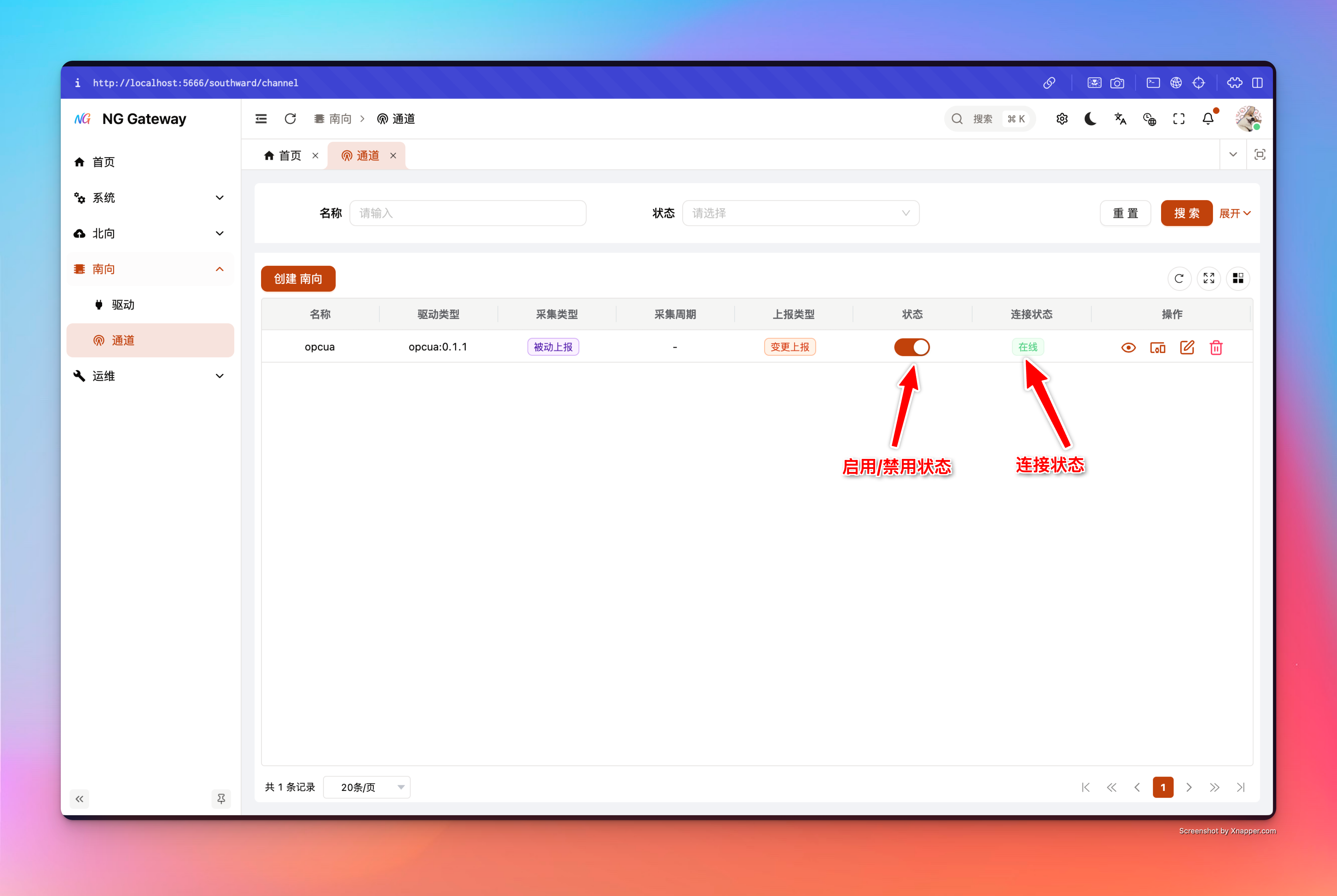
Click "Submit" to create the channel, then observe in the channel list:
- Status: Enabled/Disabled (usually enabled by default after successfully connecting the channel)
- Connection Status (runtime):
Disconnected/Connecting/Connected/Reconnecting/Failed
TIP
If the connection status is Failed, prioritize checking: Endpoint URL reachability, firewall, and whether security policy/authentication matches.
9. Create Channel Sub-device
TIP
The new entry for sub-devices, points, and actions under the channel includes ui and excel import. Both ui and excel templates are dynamically rendered according to the driver metadata schema, requiring no additional code. This document uses ui as an example.
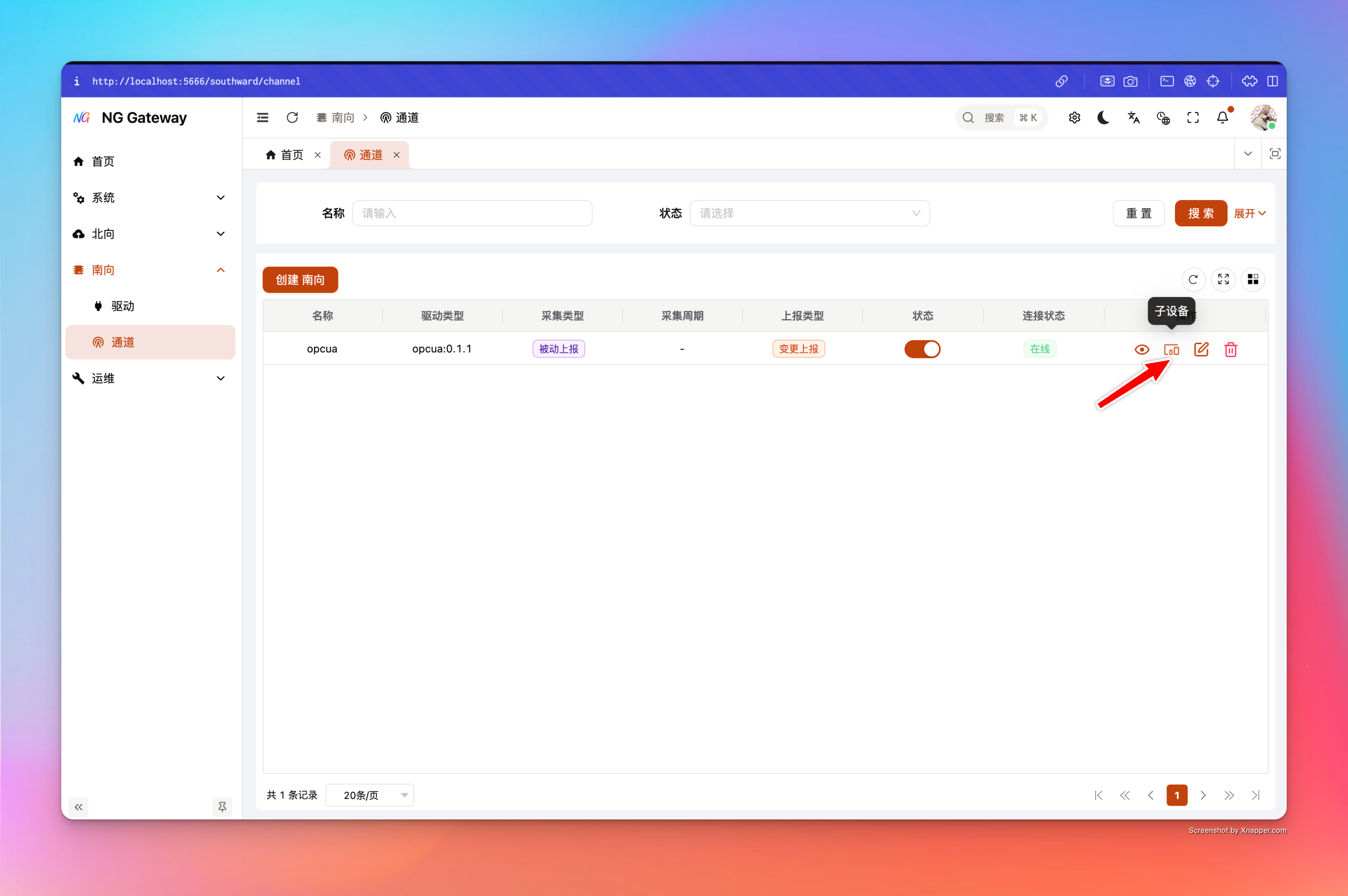
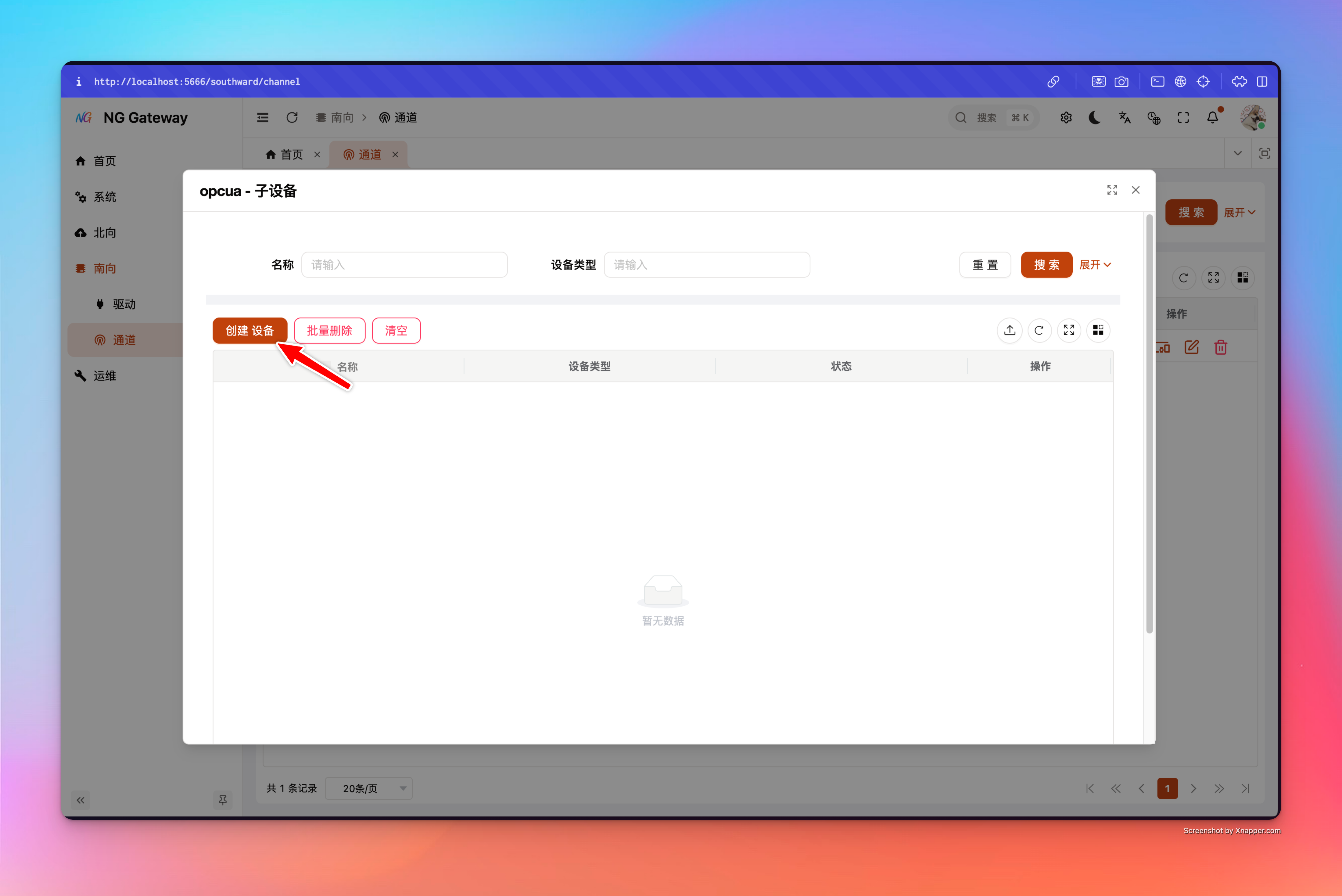
Click "Sub-devices" in the "Operation" column of the channel table to open the sub-device management popup, and click "Create Device".
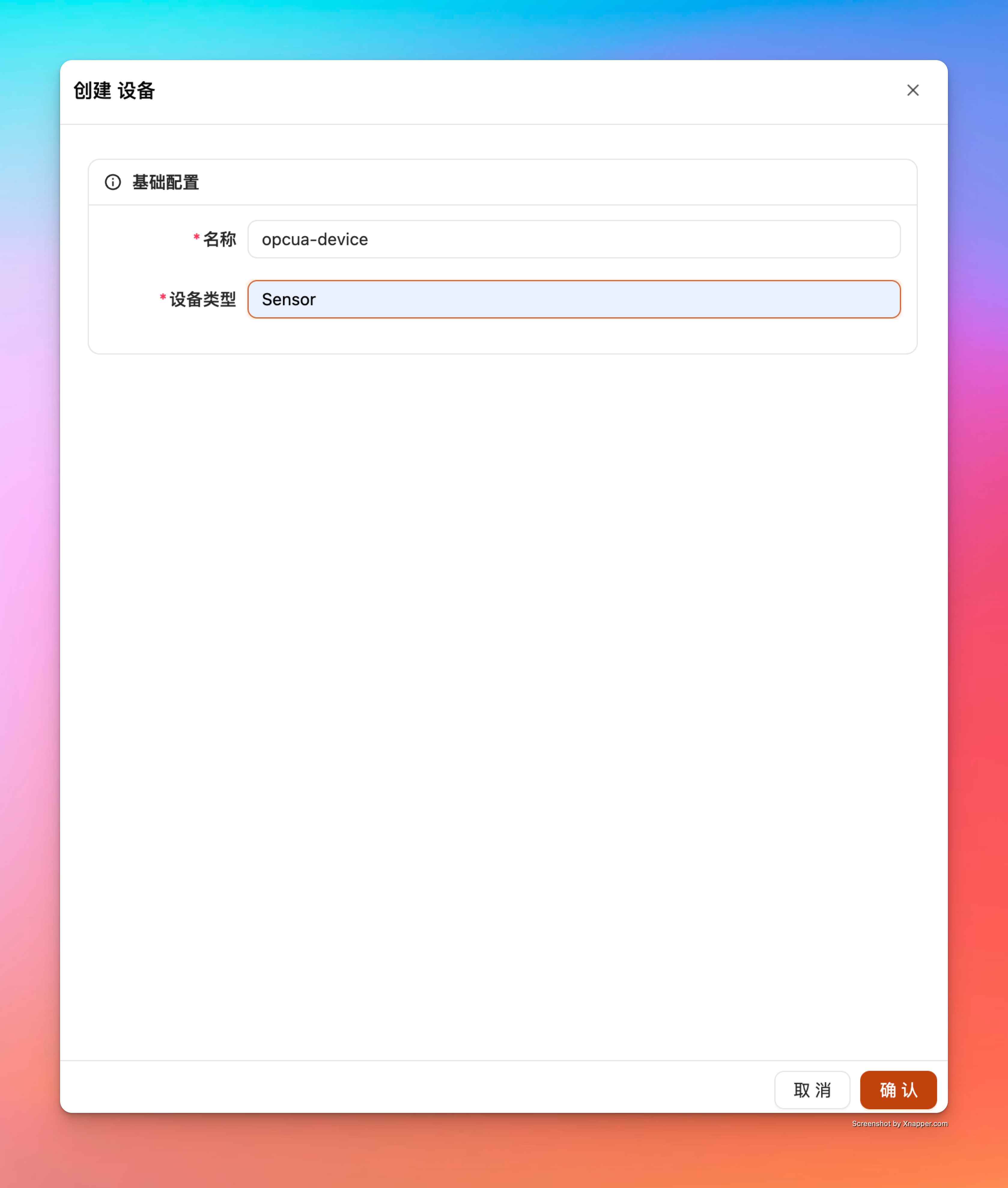
9.1 Device Configuration
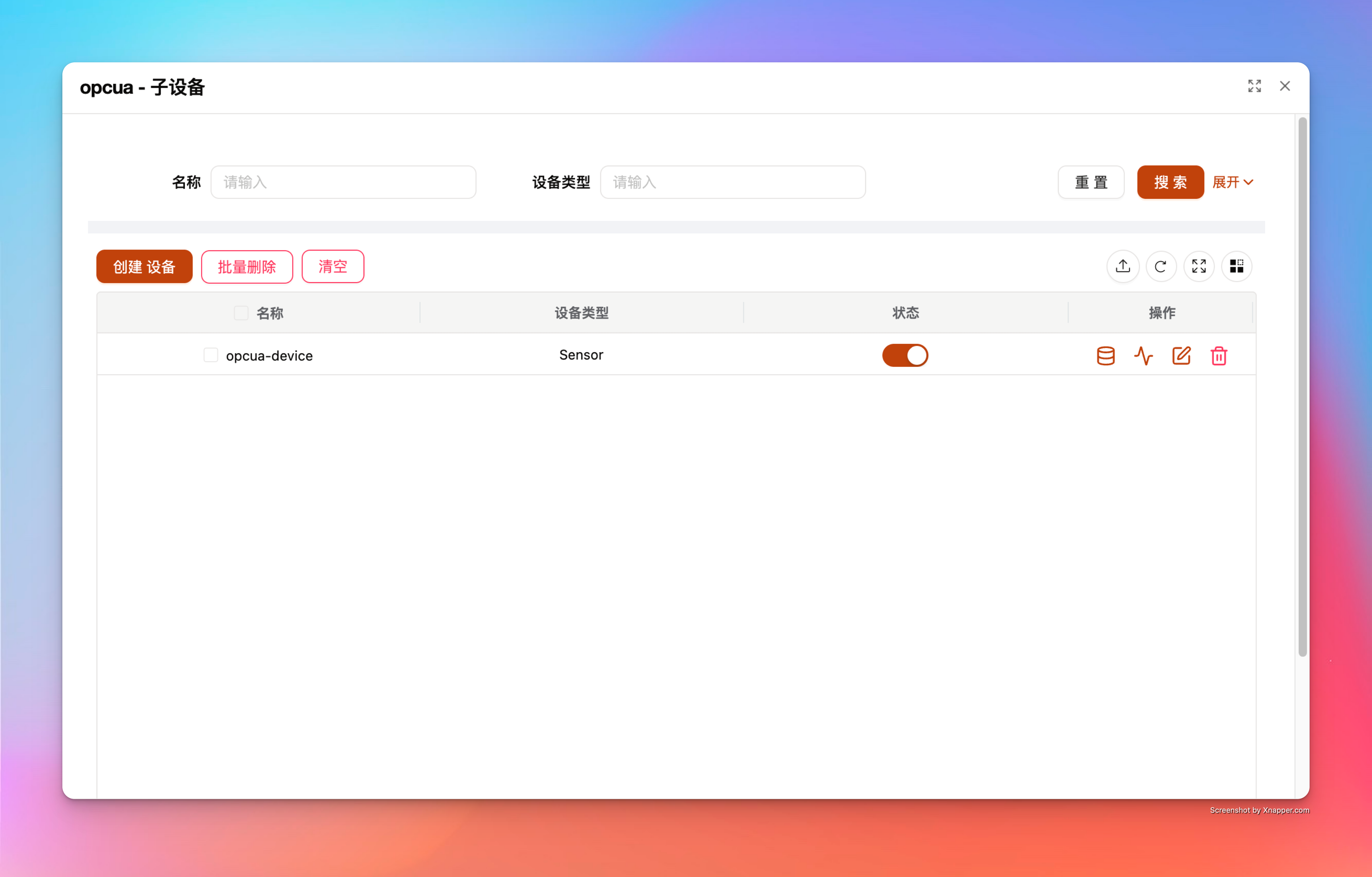
- Name: E.g.,
opcua-device - Device Type: E.g.,
Sensor - Driver Configuration: OPC UA example currently has no device-level specific configuration.
10. Create Point
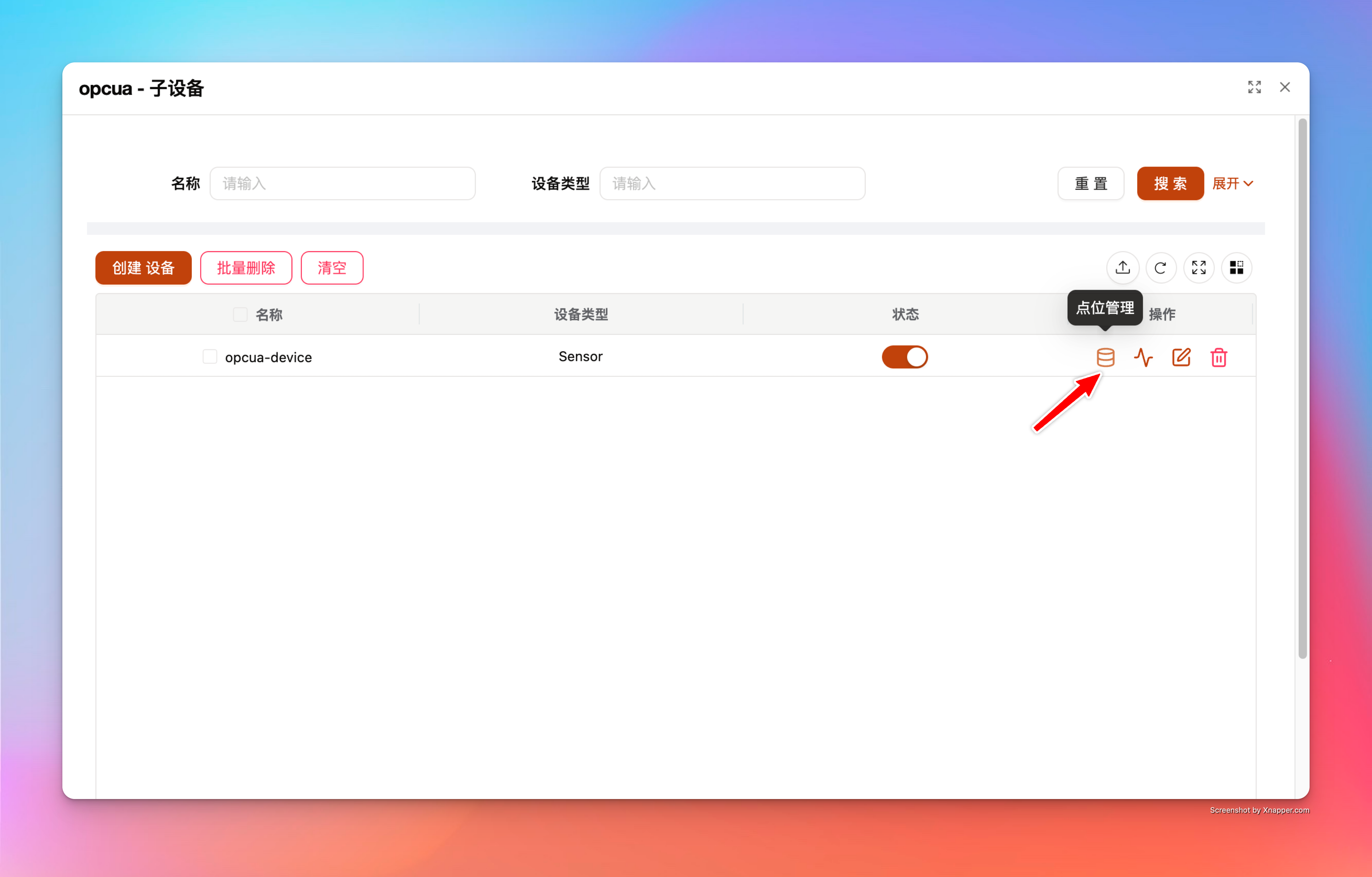
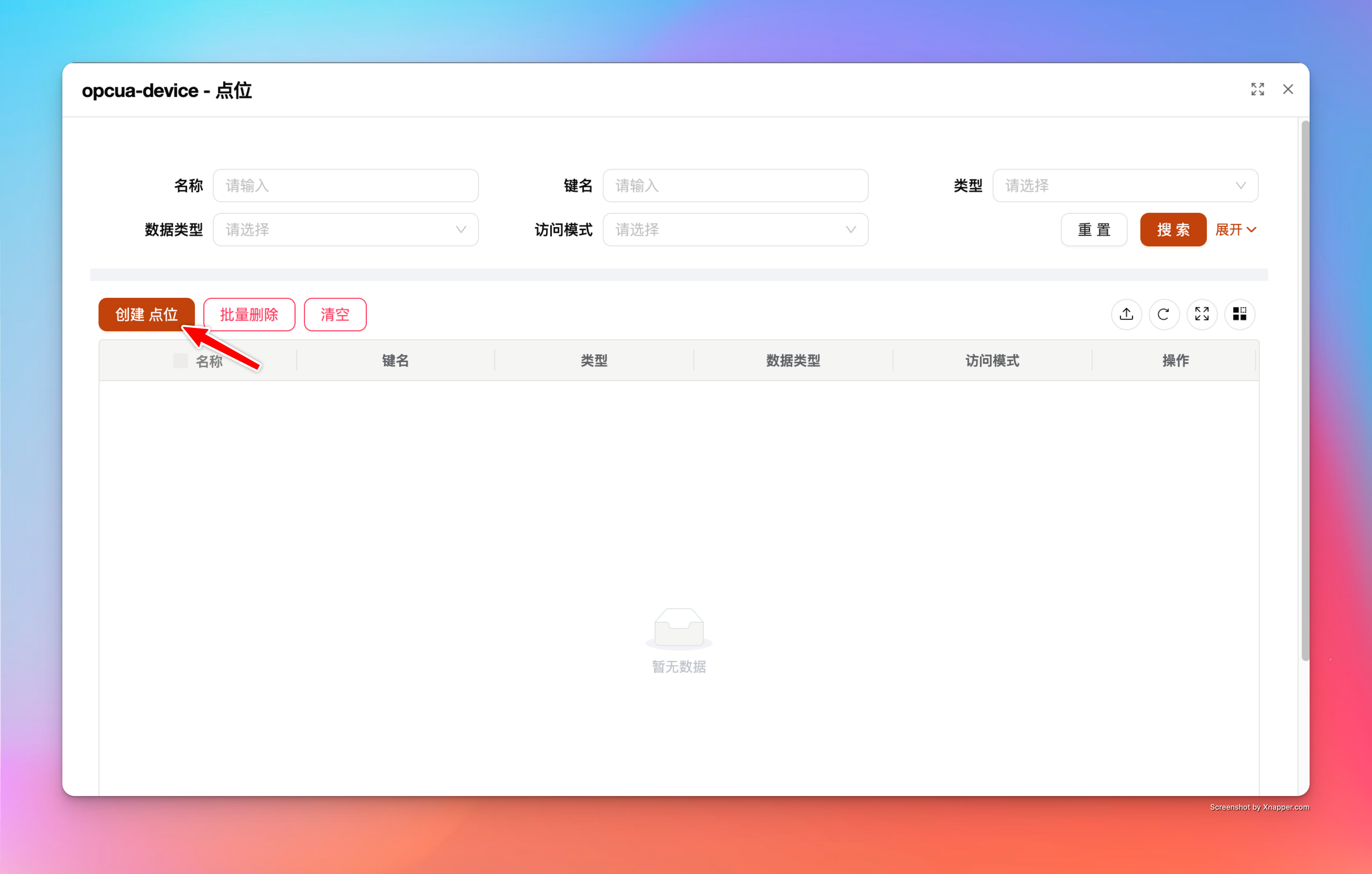
Click "Point Management" in the "Operation" column of the sub-device table to open the point management popup, and click "Create Point".
10.1 Point Basic Configuration
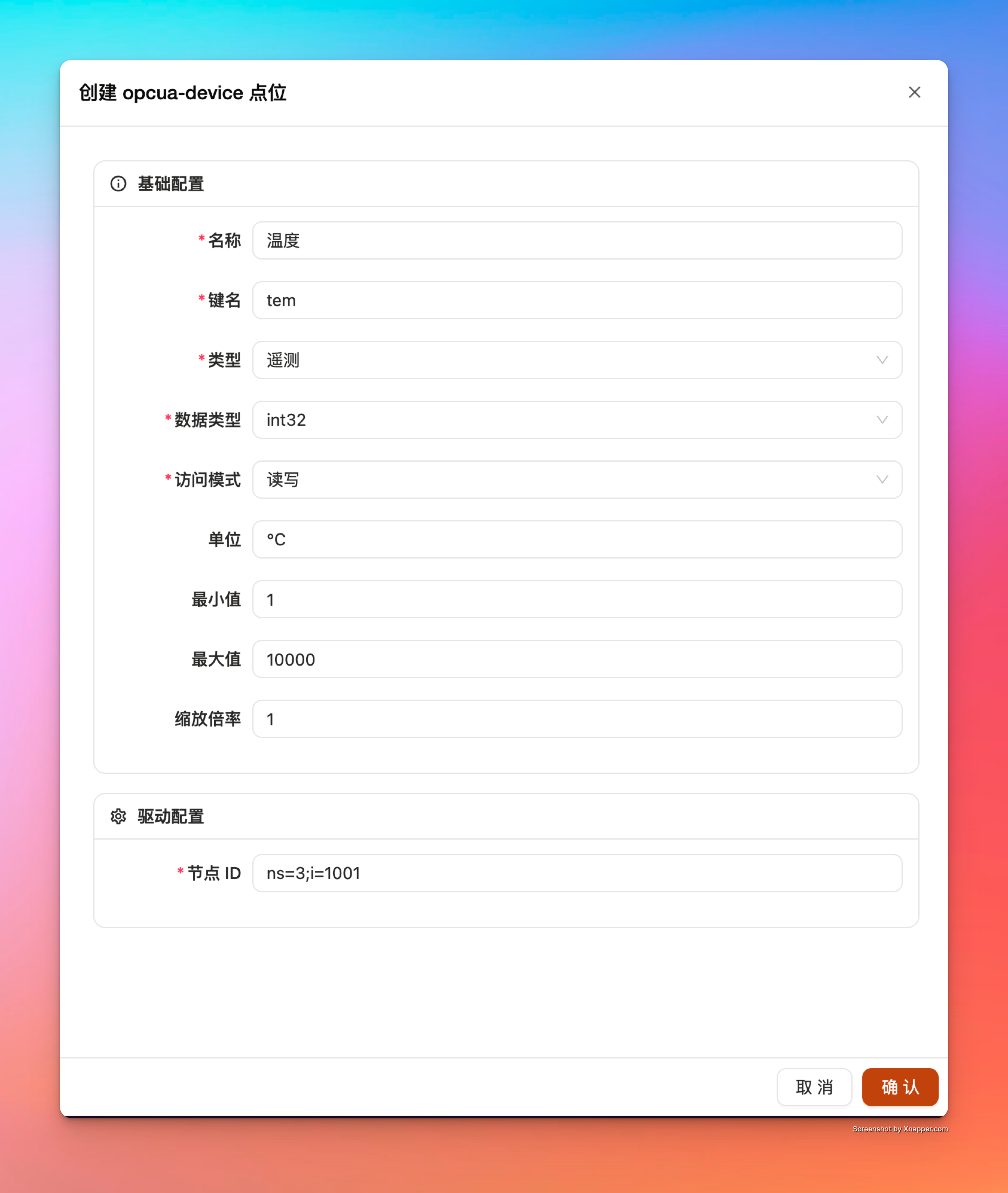
- Point Name
- Example:
Temperature
- Example:
- Key Name (key)
- Example:
tem - Description: This is a key field in the unified data model, ultimately used for routing to northward applications.
- Example:
- Type (DataPointType):
Attribute/Telemetry- Example:
Telemetry
- Example:
- Data Type (DataType):
boolean/int8/uint8/int16/uint16/int32/uint32/int64/uint64/float32/float64/string/binary/timestamp- Example:
int32
- Example:
- Access Mode (AccessMode):
ReadOnly/WriteOnly/ReadWrite - Unit (Optional)
- Example:
°C
- Example:
- Min/Max Value (Optional): Only effective for numeric types; used for downlink write validation (e.g.,
WritePointorCommand). - Scaling Factor (Optional, default 1)
- Semantics: Only effective for numeric types.
- Result: Final reported value = Collected value × Scaling factor.
10.2 OPC UA Point Driver Configuration
- Node ID
- Semantics: OPC UA nodeId
- Example:
ns=3;i=1001
TIP
The most common phenomenon of a wrong NodeId is that the channel is online but the point has no data or subscription fails; it is recommended to confirm the NodeId of the variable in the Simulation Server UI first.
11. View Collected Data (Monitor)
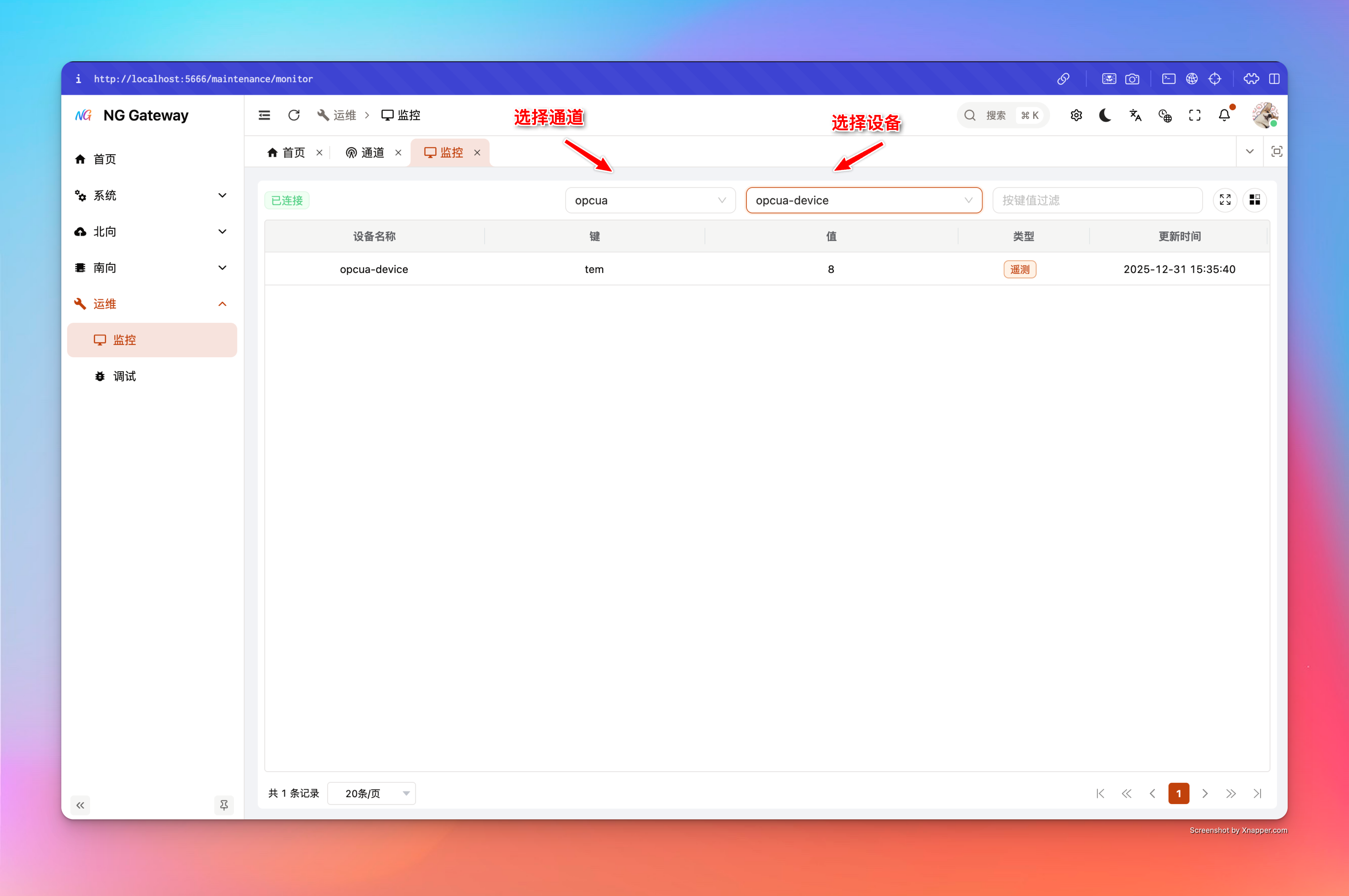
Select "Ops" -> "Monitor" in the menu:
- Select Southward Channel (e.g.,
opcua) - Select Southward Device (e.g.,
opcua-device) - Check if point data is continuously refreshing/changing
If data does not update:
- Confirm channel connection status is
Connected - Confirm
readModeandcollectionType/periodcombination is correct - Confirm variables in Simulation Server are changing